Input parameters
Workflows use input parameters to collect values from the user at run time.
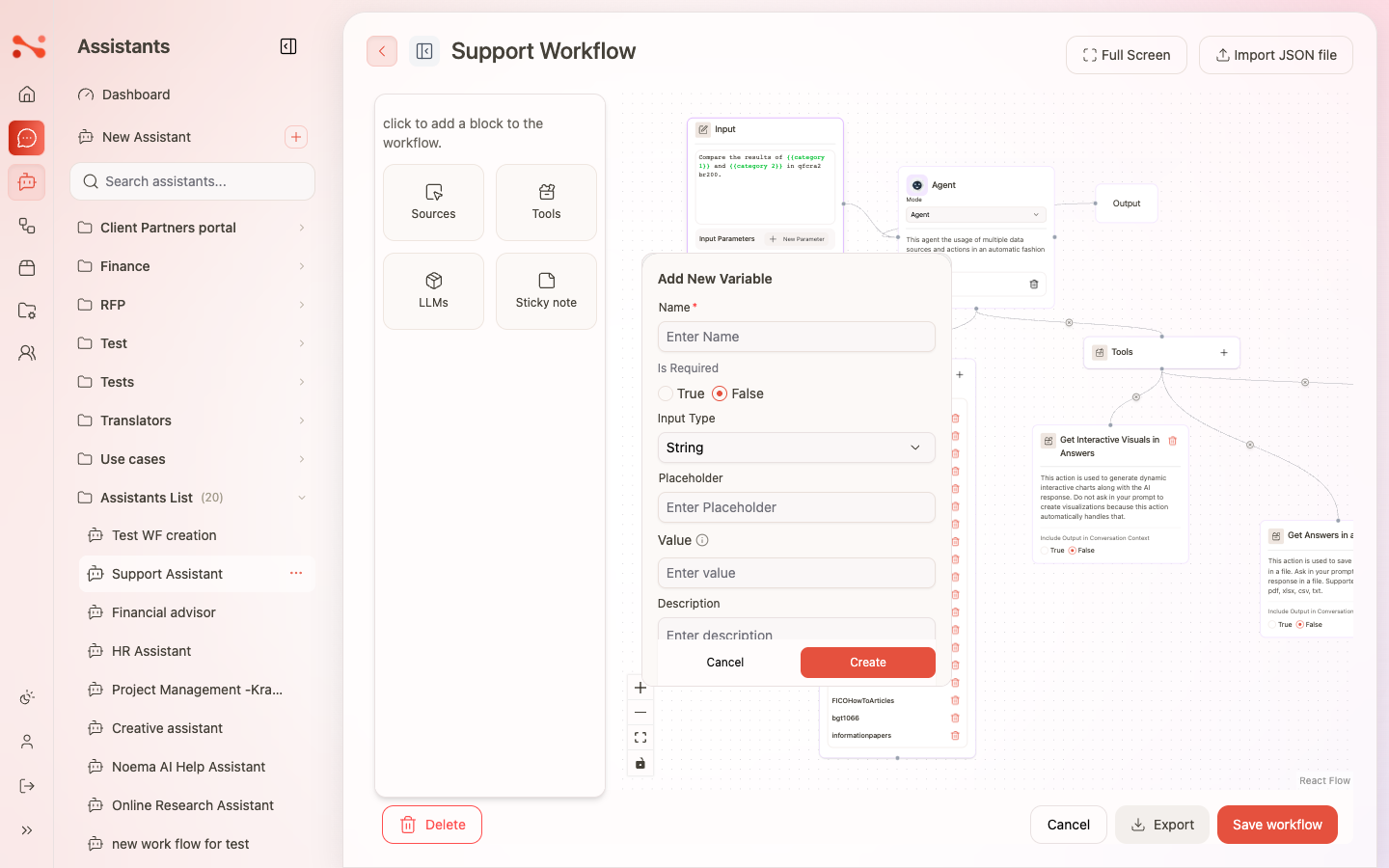
You define these in the workflow builder (Input node), and they render as a form when you run the workflow.
How input parameters are used
- Each parameter becomes a field in the Run drawer.
- You can reference the parameter in prompts using
{{name}}.
Example:
- Parameter name:
customer_name - In a prompt:
Write a reply to {{customer_name}}.
Supported parameter types
The UI supports these input types:
stringemailpasswordnumberbooleanradiocheckboxselecttextarea
Fields and validation
Each parameter can include:
- Name (required)
- Required (true/false)
- Type
- Label (optional)
- Placeholder (optional)
- Description (optional)
- Options (for
radio,checkbox,select)
Notes:
- Parameter names must be unique within a workflow.
- You can’t use certain built-in parameter names.
Reserved names
Some names are reserved because they are used as built-in task parameters.
user_context
If you try to create an input parameter with a reserved name, the UI will prevent it.
Options-based inputs
For radio, checkbox, and select, define a list of options.
Guidelines:
- Keep option values stable (so prompts don’t break).
- Prefer a small number of options to reduce ambiguity.
Attachments
When you run a workflow, the Run drawer supports attaching one or more files.
- Attachments are sent along with the run request.
- Run details can show attachments alongside the input parameters.
Troubleshooting
- Variables not being replaced: verify the placeholder matches the parameter name exactly (
{{name}}). - Missing required values: ensure required parameters are filled before running.