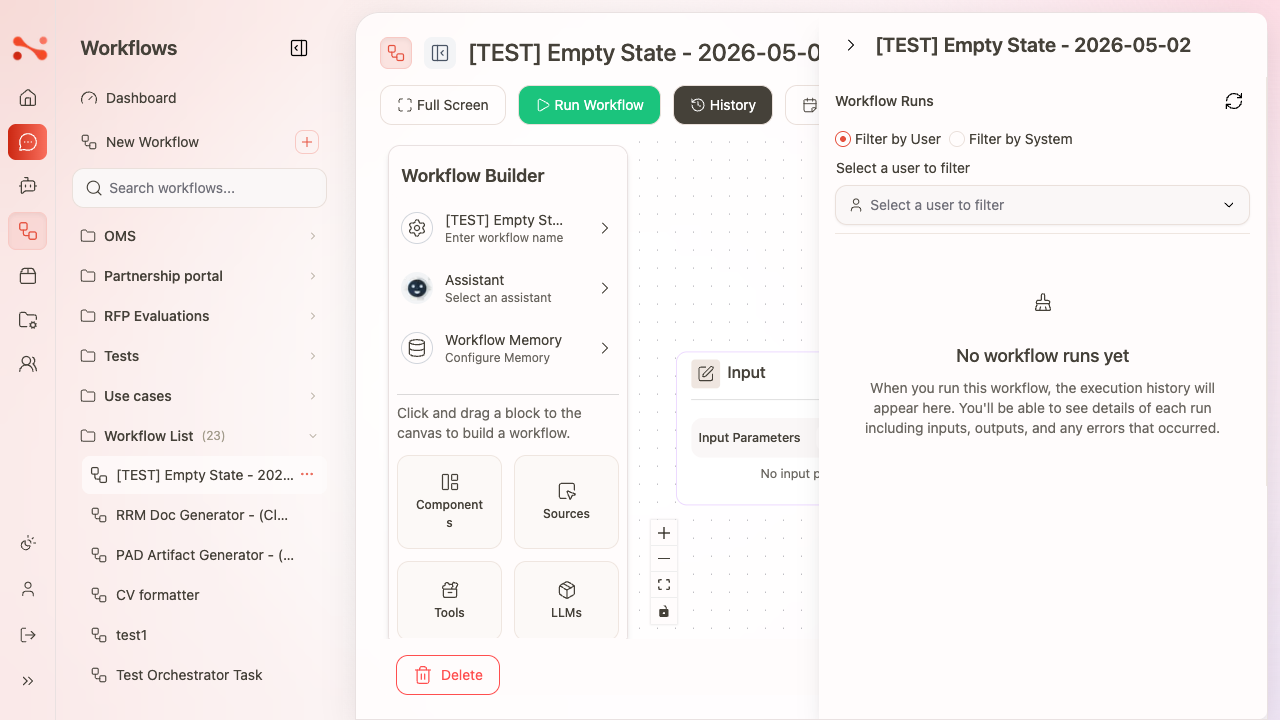
Workflow Run History
Learn how to view, analyze, and manage your workflow execution history in Noema AI.
Overview
The workflow run history provides a complete audit trail of all workflow executions, including successful runs, failures, and performance metrics.
Accessing Run History
1. Navigate to History
- Go to Workflows dashboard
- Select a specific workflow
- Click on the "History" or "Runs" tab
2. View All Runs
The history view displays:
- Run ID: Unique identifier for each execution
- Start Time: When the workflow began
- Duration: How long it took to complete
- Status: Success, Failed, Running, or Cancelled
- Triggered By: Manual, scheduled, or event trigger
- Input Summary: Overview of input parameters
Filtering and Searching
Find specific runs using filters:
- Date Range: Select a time period
- Status: Filter by success, failed, etc.
- Trigger Type: Manual, scheduled, or event-based
- Search: Search by run ID or input data
Detailed Run Information
Click on any run to see detailed information:
Execution Timeline
View step-by-step execution:
- Each step in the workflow
- Start and end time for each step
- Status of each step (completed, failed, skipped)
- Time spent on each step
Input and Output Data
Review the data processed:
- Input Parameters: What was provided to the workflow
- Output Results: What was produced
- Intermediate Data: Data passed between steps
Logs and Errors
Access detailed logs:
- Execution Logs: Step-by-step activity log
- Error Messages: Detailed error information if failed
- Warnings: Any non-critical issues encountered
- Debug Information: Technical details for troubleshooting
Performance Metrics
Analyze workflow performance:
- Total Duration: Overall execution time
- Step Breakdown: Time spent on each step
- Resource Usage: CPU, memory, storage consumed
- API Calls: External API usage and costs
Analyzing Trends
Performance Over Time
Track workflow performance trends:
- Average execution time
- Success rate percentage
- Failure patterns
- Resource usage trends
Charts and Visualizations
View graphical representations:
- Execution count over time
- Success vs. failure rates
- Average duration trends
- Resource consumption graphs
Rerunning Failed Workflows
Retry failed executions:
- Select the failed run
- Click "Rerun"
- Option to use same input or modify
- Execute the workflow again
Comparing Runs
Compare multiple executions:
- Select 2 or more runs
- Click "Compare"
- View side-by-side comparison:
- Execution times
- Different outputs
- Performance differences
Exporting History
Export run history for analysis:
- CSV Export: Tabular data for spreadsheets
- JSON Export: Structured data for processing
- PDF Report: Formatted report for sharing
Retention and Cleanup
Manage historical data:
- Retention Policy: How long to keep run history
- Archive Old Runs: Move older runs to archive storage
- Delete Runs: Remove specific runs if needed
Alerts and Notifications
Set up alerts based on run history:
- Notify on consecutive failures
- Alert on slow performance
- Trigger on specific error patterns
Best Practices
- Regularly review run history for patterns
- Set up alerts for critical workflows
- Archive old runs to optimize performance
- Export important run data for compliance
- Document and investigate failures promptly