Users
The Users section allows admins to view all users in the tenant, search for users, and edit individual user settings.
URL: /users
User provisioning (creating new accounts) is handled externally via Azure Entra ID. There is no "Invite User" or "Create User" button in the app — new users appear in the list after their first login via Entra ID.
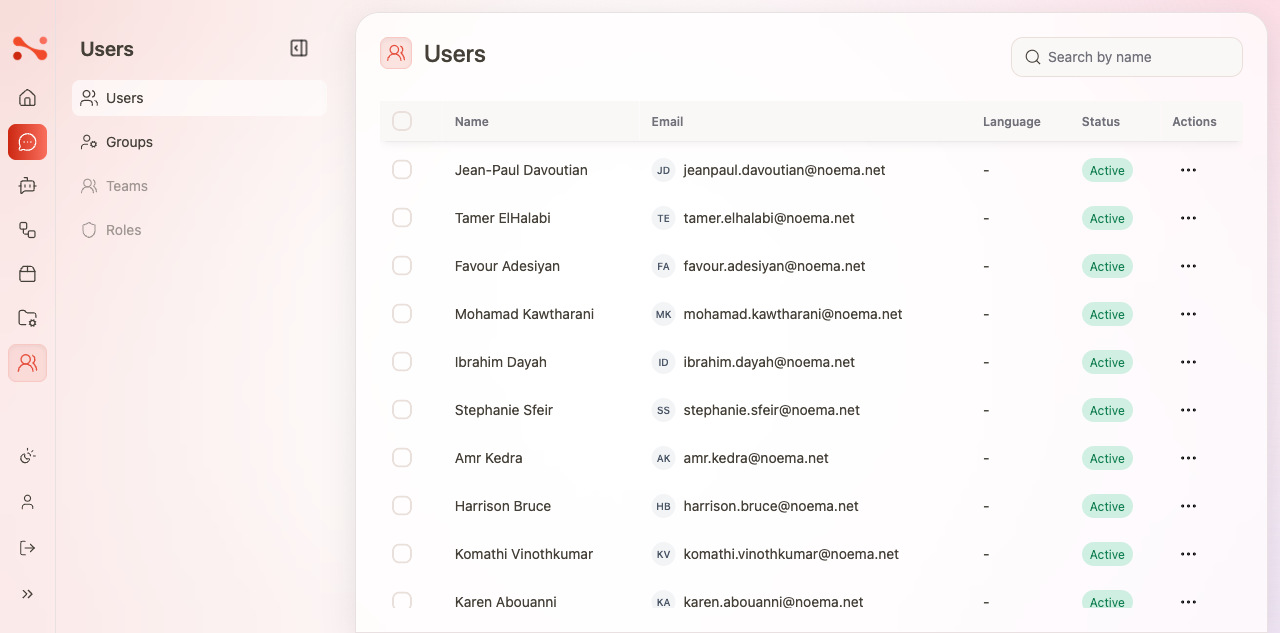
Users table
The table lists all users in the tenant. Columns:
| Column | Description |
|---|---|
| Name | User avatar (initials badge) + full display name |
| Email address | |
| Language | Preferred language code (e.g. en) |
| Status | Account status badge (e.g. "Active") |
| Actions | ⋯ menu for Edit, View Details, and Delete |
All users in the table have the Active status by default.
Search
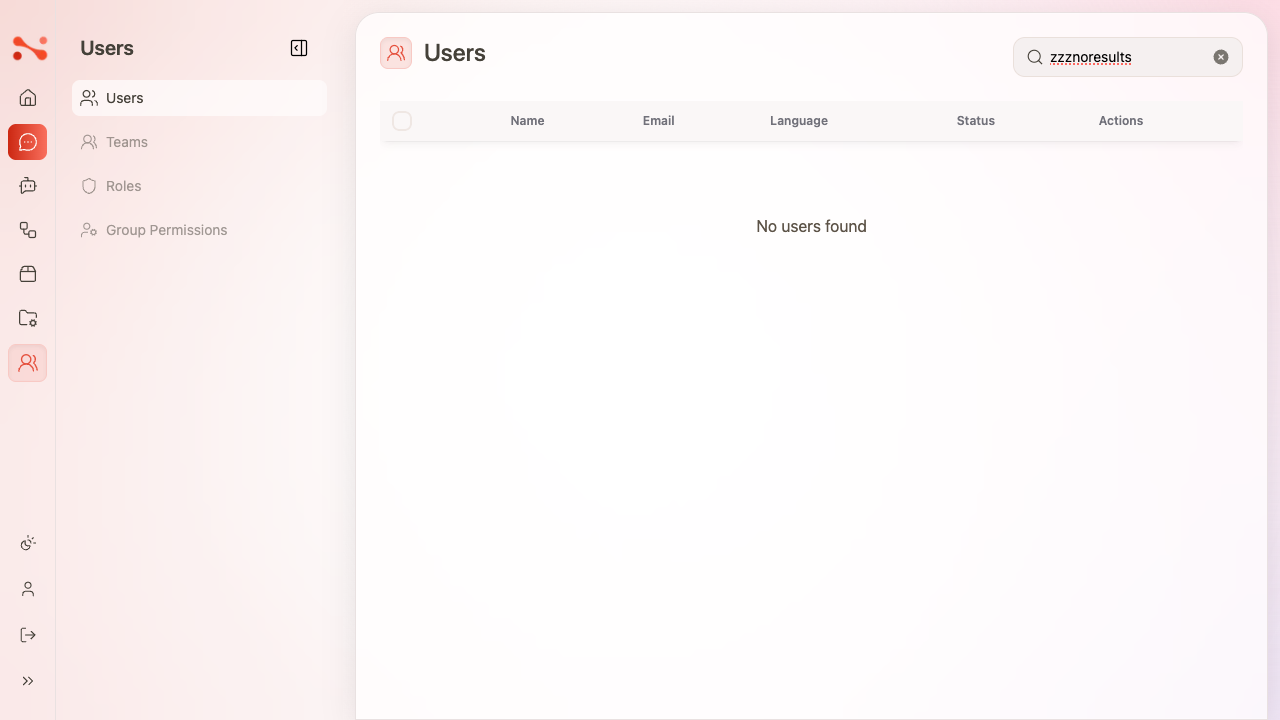
Type in the Search by name field to filter the user list client-side in real-time. Click the X button to clear the search and restore the full list.
When no users match the search: "No users found" is shown in the table body.
Roles
User roles control what actions a user can perform in the platform.
| Role | Description |
|---|---|
| Admin | Full access to configure assistants, workflows, sources, and manage users |
| Platform Admin | Platform-level administrative access |
| User | Standard access to use assistants and chats |
| Contributor | Can contribute content but with limited admin access |
Roles are assigned on the individual user settings page.
Sidebar navigation
The Users section sidebar shows four navigation items:
| Item | State |
|---|---|
| Users | Active |
| Teams | Disabled (not yet available) |
| Roles | Disabled (not yet available) |
| Group Permissions | Disabled (not yet available) |
Teams, Roles, and Group Permissions are visible but not yet implemented.