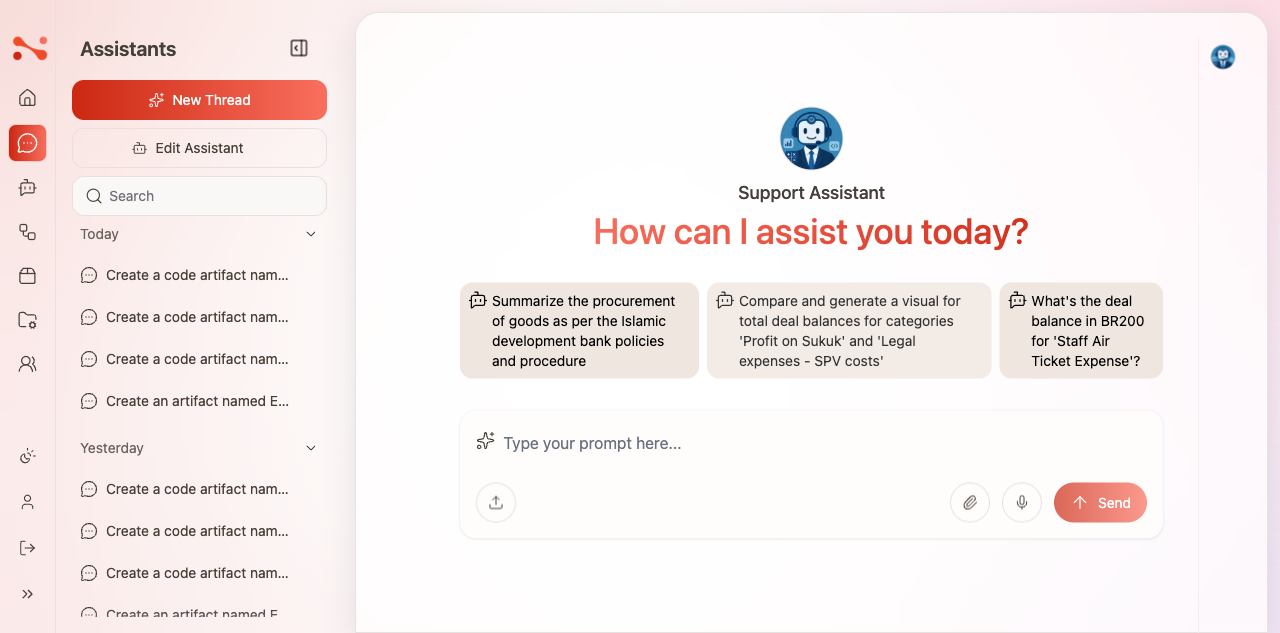
Create a Chat Assistant
Learn how to set up AI-powered chat assistants for customer support and user engagement.
Overview
Chat assistants in Noema AI enable real-time conversational AI for customer support, sales, and user engagement across multiple channels.
Prerequisites
- Active Noema AI account
- Defined use case and conversation flow
- Optional: Knowledge base or data sources
Steps to Create a Chat Assistant
1. Access Chat Dashboard
Navigate to Chats from the main menu.
2. Create New Chat Assistant
Click "Create New Chat" to start the setup process.
3. Configure Basic Settings
Provide essential information:
- Name: Descriptive name for the chat assistant
- Description: Purpose and functionality
- Channel: Web chat, messaging apps, or custom integration
- Language: Primary conversation language
4. Design Conversation Flow
Define how the chat should interact:
Greeting Message
Set the initial message users see:
"Hello! I'm here to help you with [topic].
How can I assist you today?"
Response Style
Configure the assistant's personality:
- Formal or casual tone
- Verbose or concise responses
- Use of emojis or professional language
Fallback Responses
Define what to say when uncertain:
"I'm not sure about that. Let me connect you
with a human agent who can help."
5. Connect Knowledge Sources
Link relevant information:
- FAQ databases
- Product documentation
- Help articles
- Custom knowledge bases
6. Set Up Integrations
Connect to external systems:
- CRM: Update customer records
- Ticketing: Create support tickets
- Analytics: Track conversation metrics
- Notifications: Alert team members
7. Configure Advanced Features
Enable additional capabilities:
- Intent Recognition: Understand user goals
- Entity Extraction: Identify key information
- Multi-turn Conversations: Remember context
- Sentiment Analysis: Detect user emotions
8. Test Your Chat
Before deploying:
- Use the test interface
- Try various conversation scenarios
- Check response quality
- Verify integrations work
9. Deploy
Make your chat assistant live:
- Choose deployment channels
- Configure widget appearance (for web)
- Set availability hours
- Enable/disable features
Customization Options
Widget Appearance (Web Chat)
Customize the look and feel:
- Colors: Match your brand
- Position: Bottom right, left, etc.
- Size: Compact or expanded
- Avatar: Custom assistant image
Chat Features
Enable interactive features:
- Quick reply buttons
- File attachments
- Rich media (images, videos)
- Forms and surveys
- Product recommendations
Best Practices
- Start with common questions and expand
- Test thoroughly before public launch
- Monitor conversations and improve
- Set clear expectations for users
- Provide easy escalation to humans