Workflow Runs
The Workflow Runs page gives you a complete view of every workflow execution, allowing you to monitor performance, debug failures, and track usage across your team.
Overview
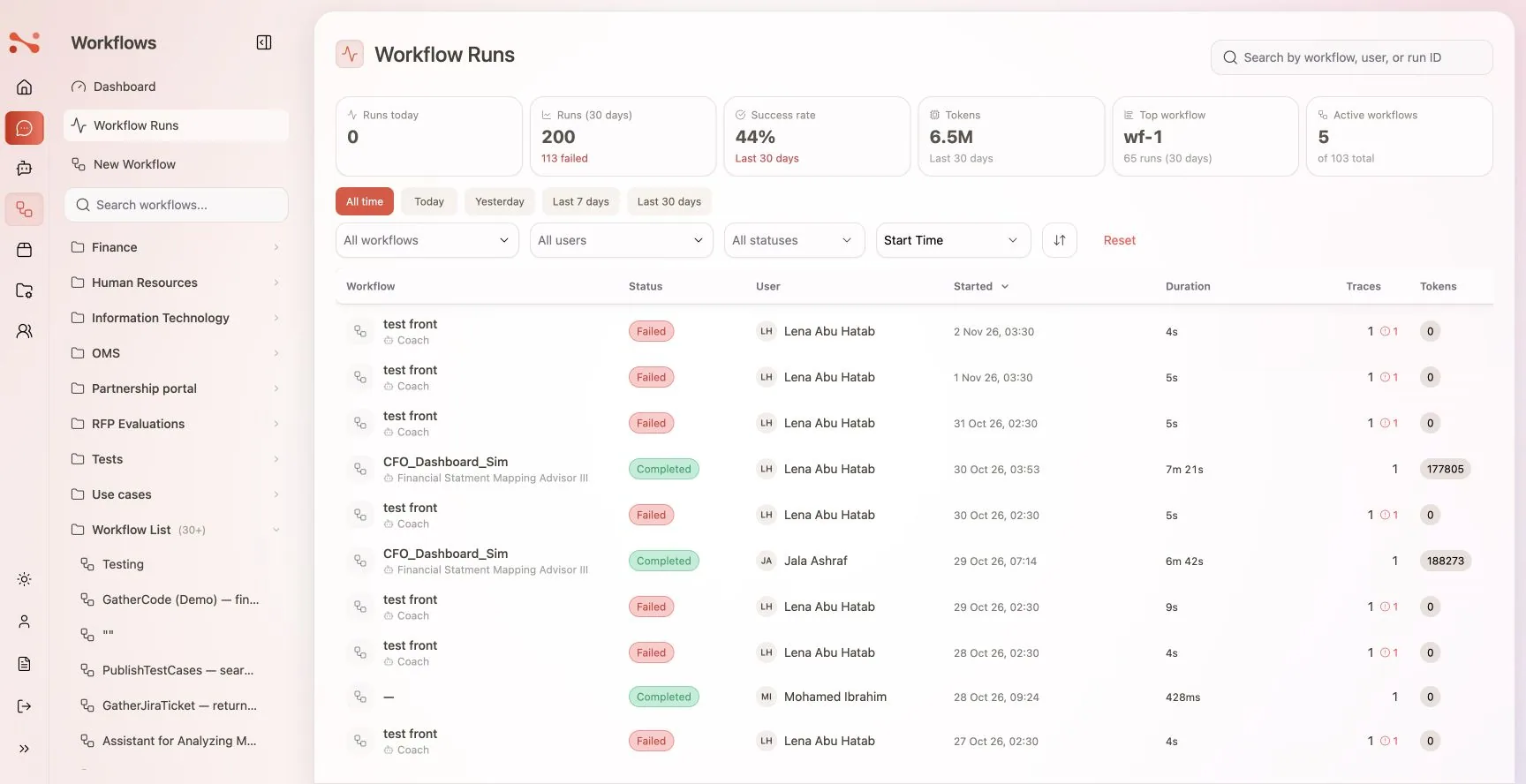
At the top of the page, you'll find quick stats summarizing recent activity:
- Runs today — total number of workflow runs executed today
- Avg duration — average execution time across runs
- Active workflows — number of workflows currently active
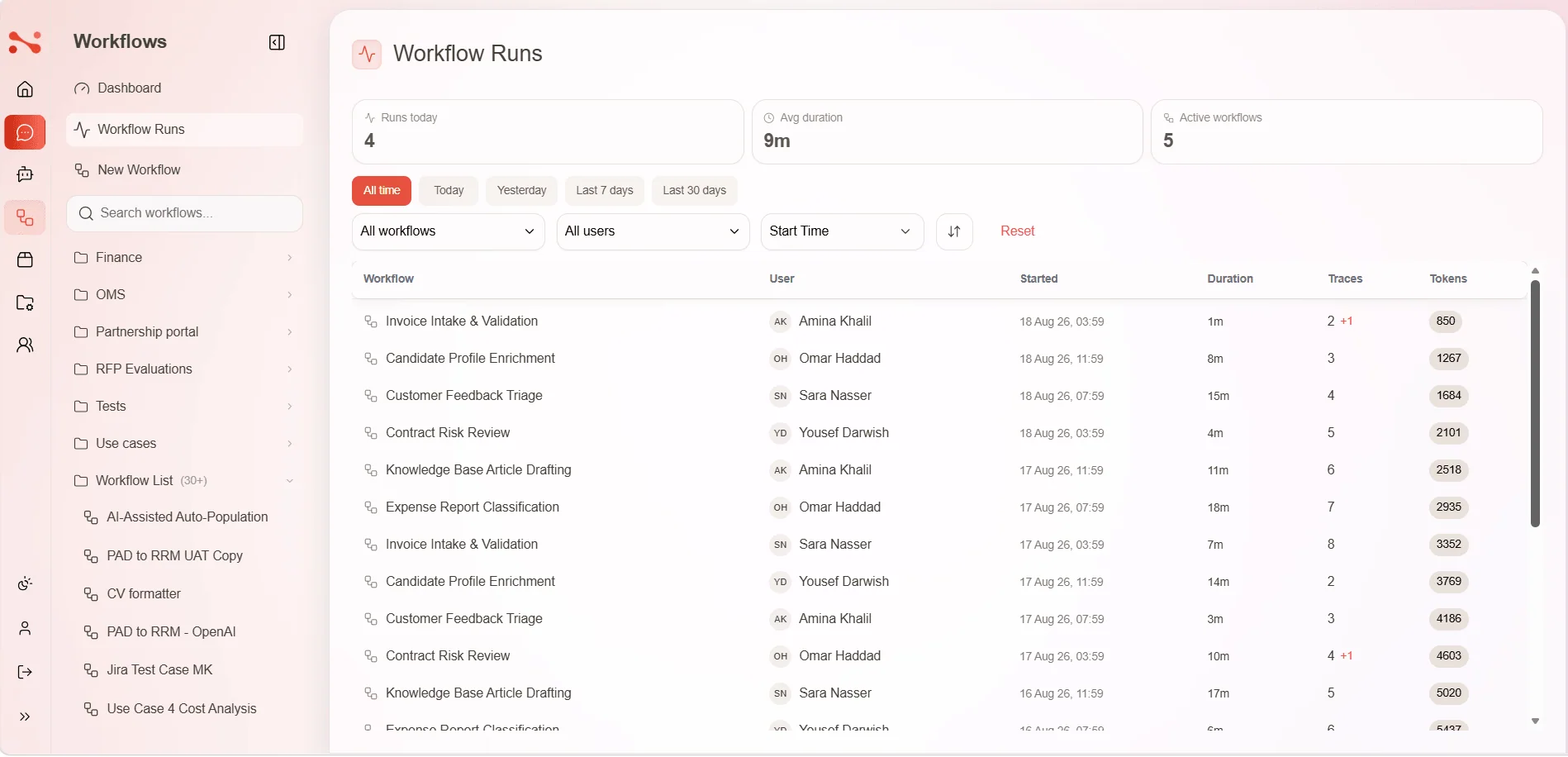
Filtering runs
You can narrow down the list of runs using the filters bar. Filters apply instantly — no need to click a "save" or "apply" button.
Available filters:
- Date range — quick filter buttons for
All time,Today,Yesterday,Last 7 days, andLast 30 days - Workflow name — show runs for a specific workflow (e.g.
CV formatter). The dropdown includes a search box — typing a value that doesn't match any workflow shows a "No results found" state. - User — filter by the user who triggered the run. The dropdown includes a search box — typing a value that doesn't match any user shows a "No results found" state.
- Sort by — choose which field to sort the table by:
Start Time,Token count, orNumber of traces - Sort direction — toggle ascending / descending order using the arrows icon next to the sort dropdown
Click Reset at any time to clear all active filters and return the table to its default state.
Runs table
The table lists all runs matching the current filters, with the following columns:
| Column | Description |
|---|---|
| Workflow | Name of the workflow that was run |
| User | User who triggered the run |
| Started | Timestamp the run started |
| Duration | Total execution time |
| Traces | Number of traces recorded for the run |
| Tokens | Total tokens consumed during the run |
The table supports pagination for browsing large result sets, and scrolls vertically when there are more rows than fit on screen.
Run details
Clicking any row opens a details panel on the right, organized into four tabs.
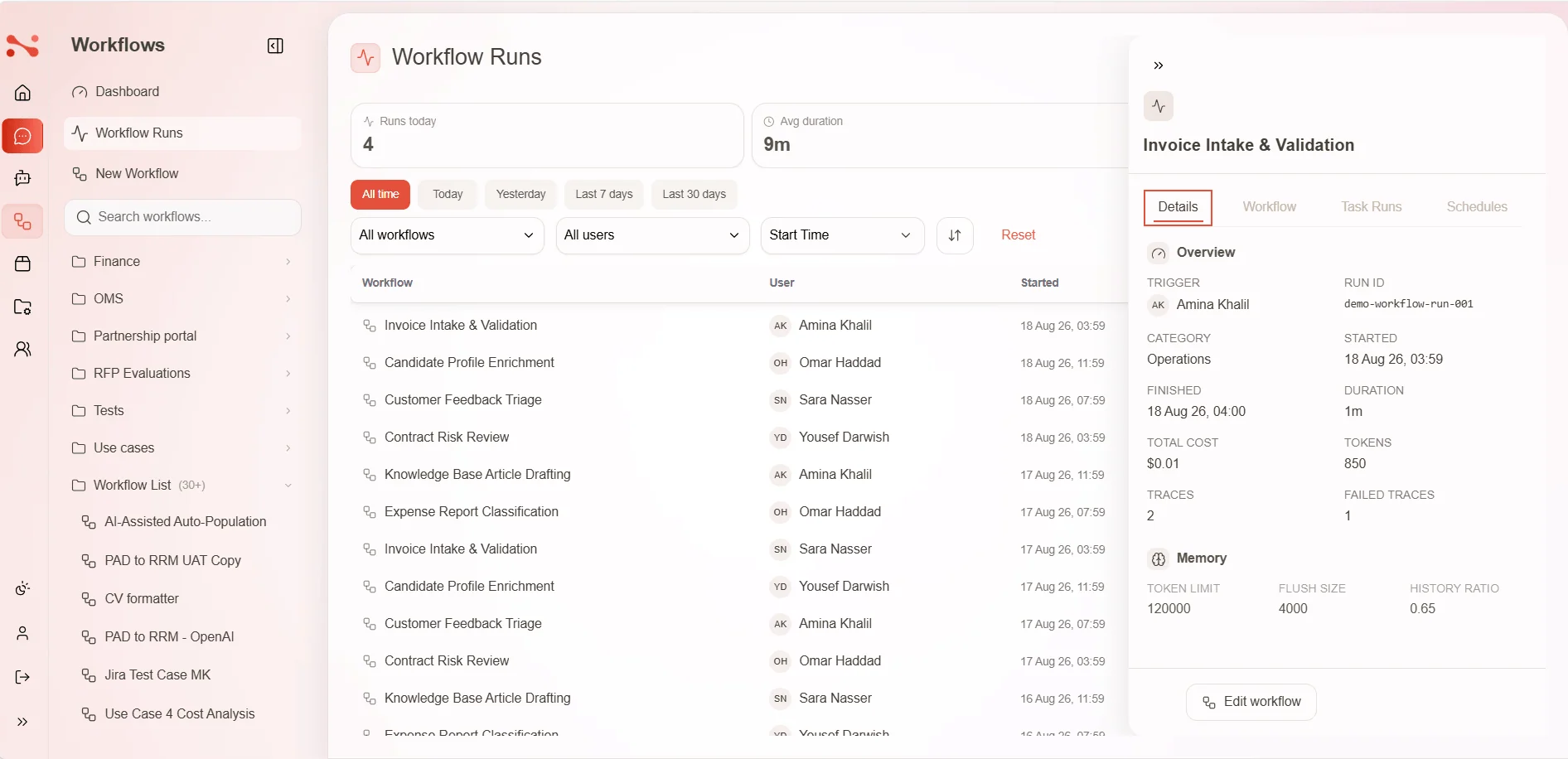
Details
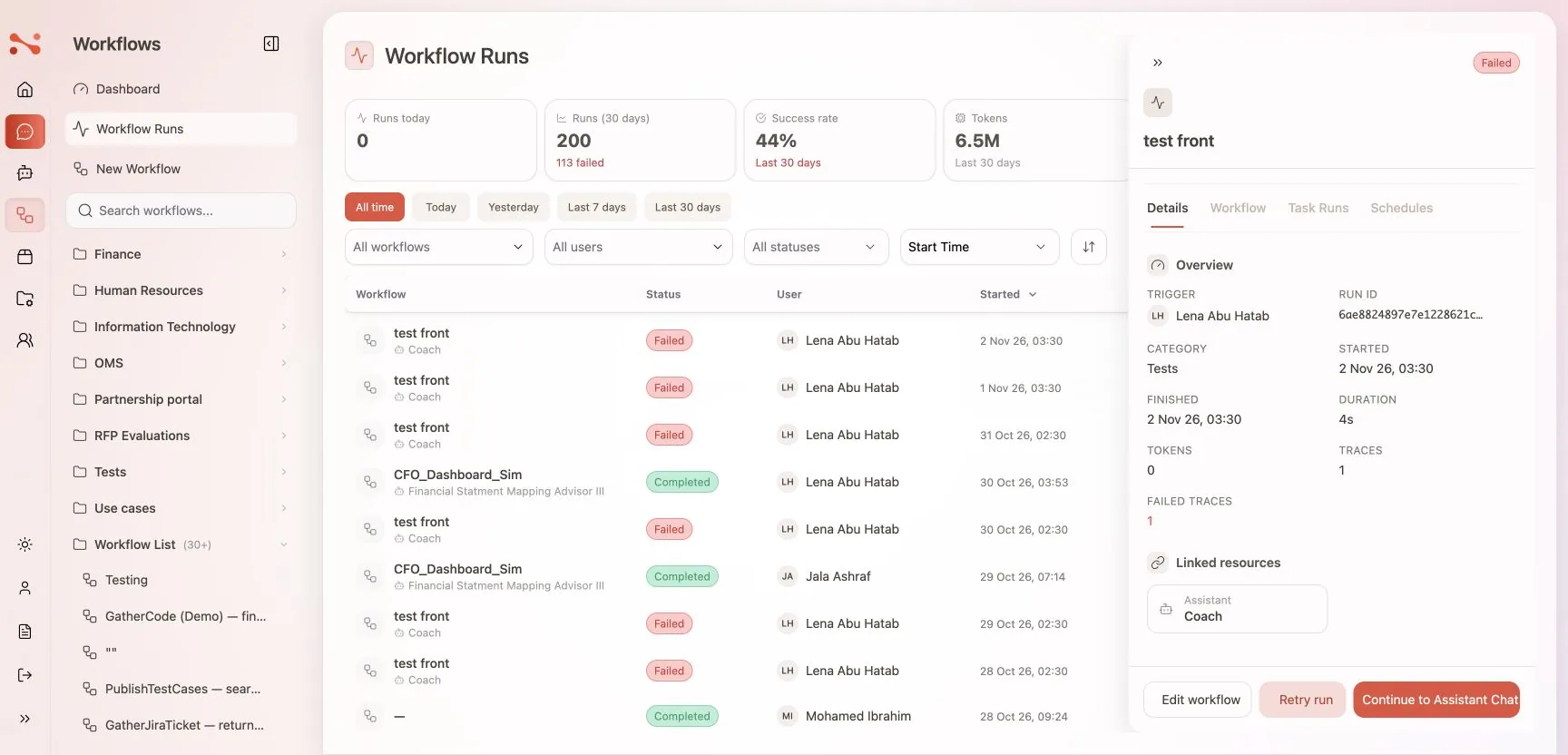
Shows a full overview of the selected run:
- Trigger, Run ID, Category
- Started / Finished timestamps and Duration
- Total Cost and Tokens used
- Traces and Failed Traces count
- Memory — memory configuration used for this run:
- Token Limit — maximum number of short-term and long-term tokens to store
- Chat History Token Ratio — ratio (0–1) of tokens in the short-term chat history to the total token limit
- Token Flush Size — number of tokens to flush into long-term memory when the chat history exceeds the token limit
Workflow
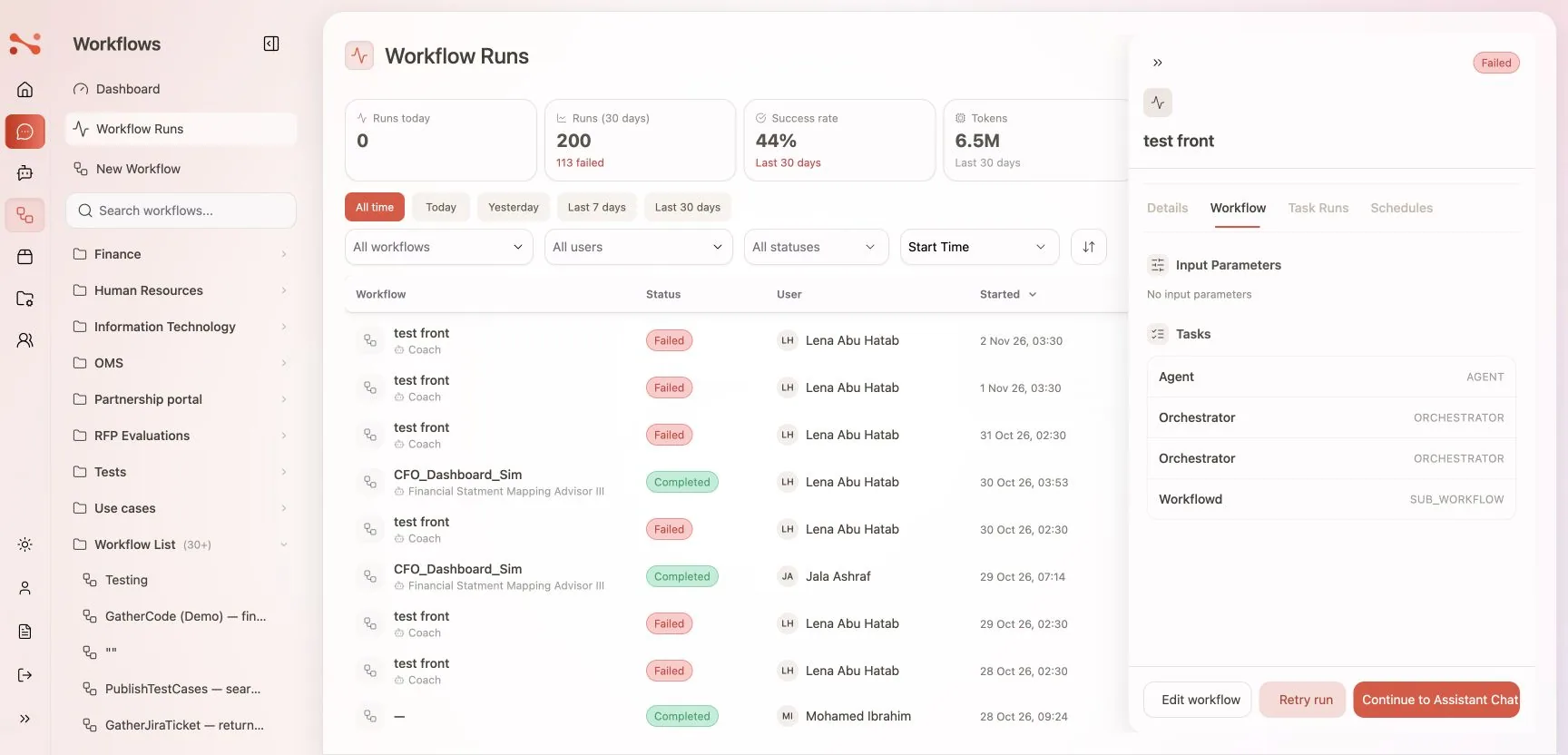
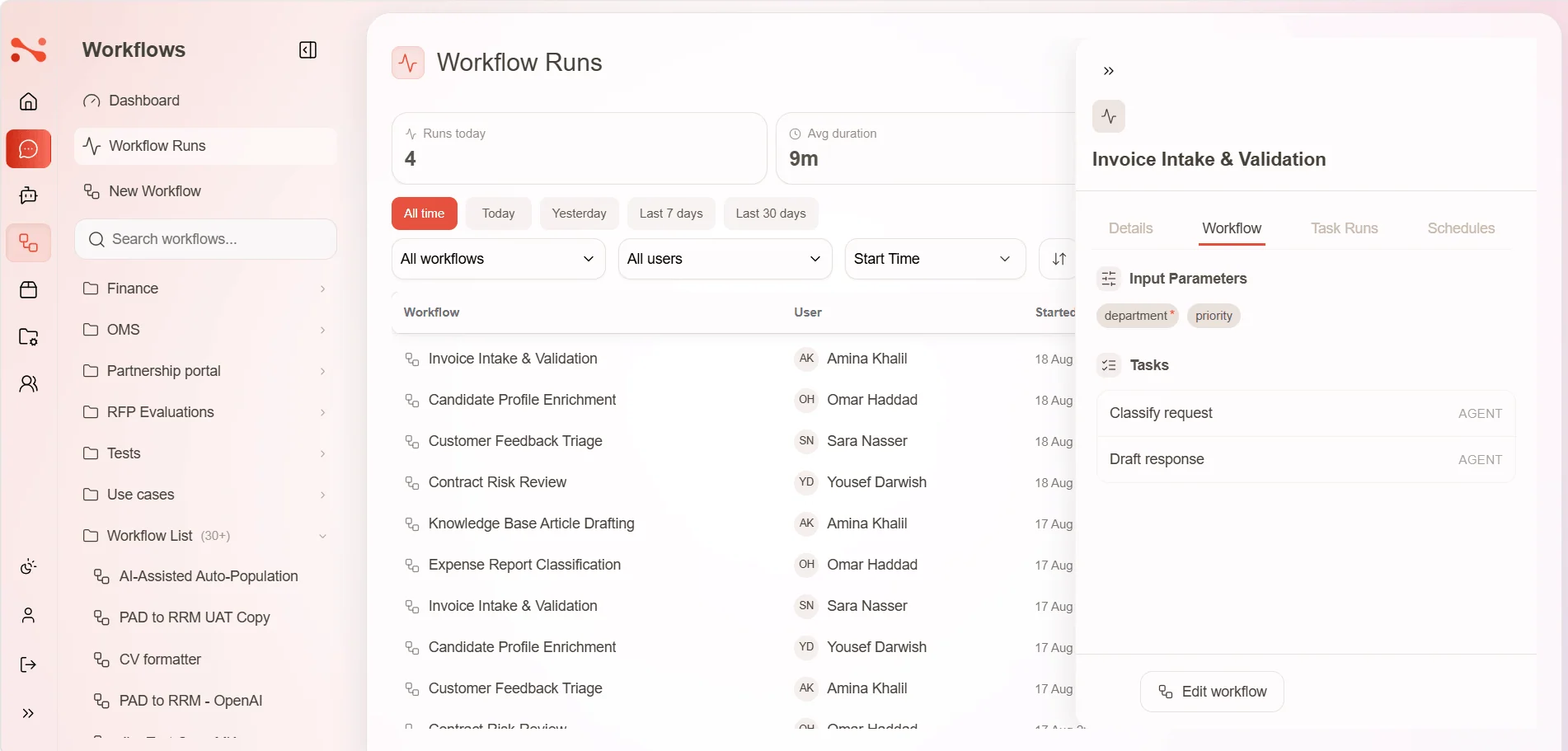
Shows the structure of the workflow that was executed:
- Input Parameters — e.g.
language - Tasks — the list of tasks in the workflow, each labeled with its type (e.g.
AGENT)
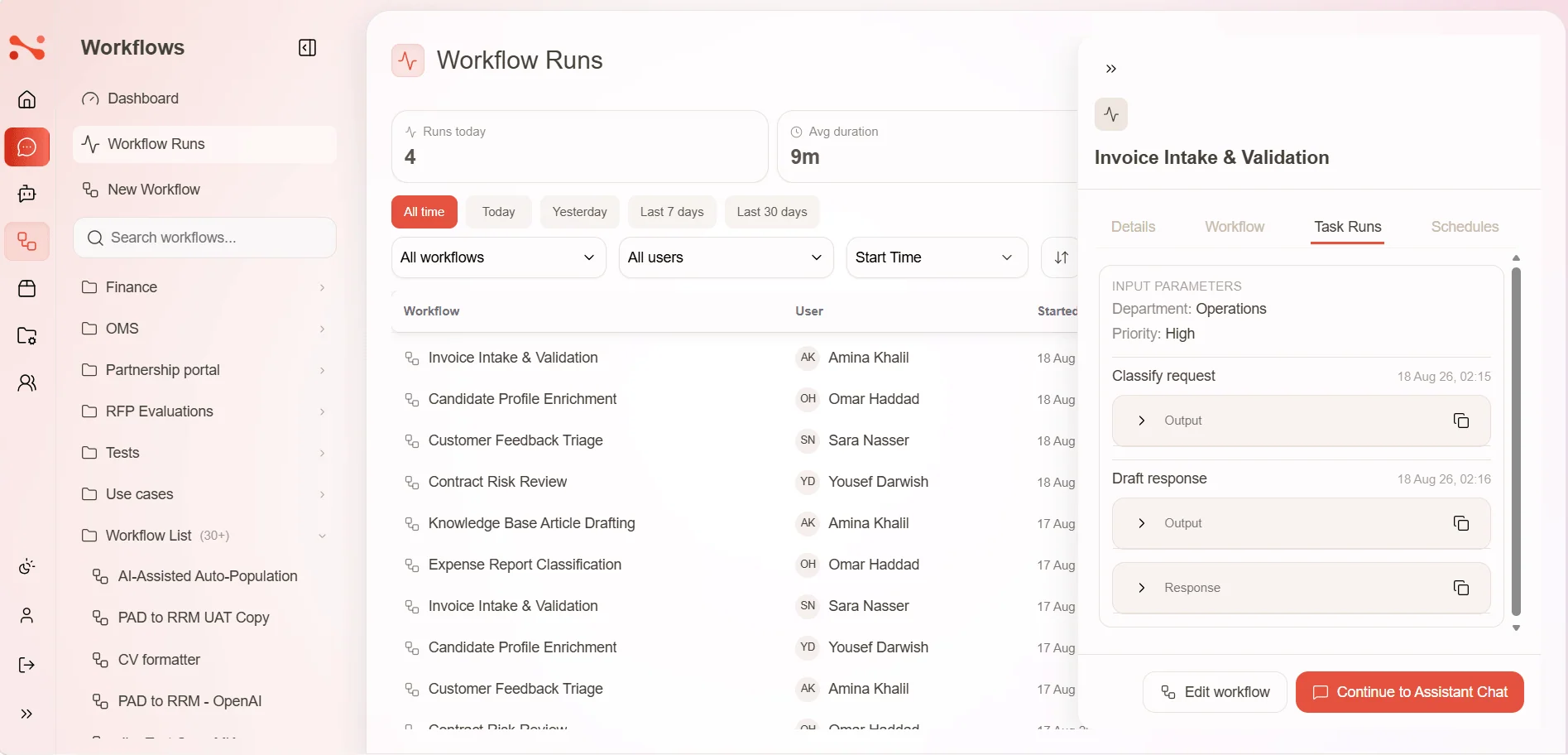
Task Runs
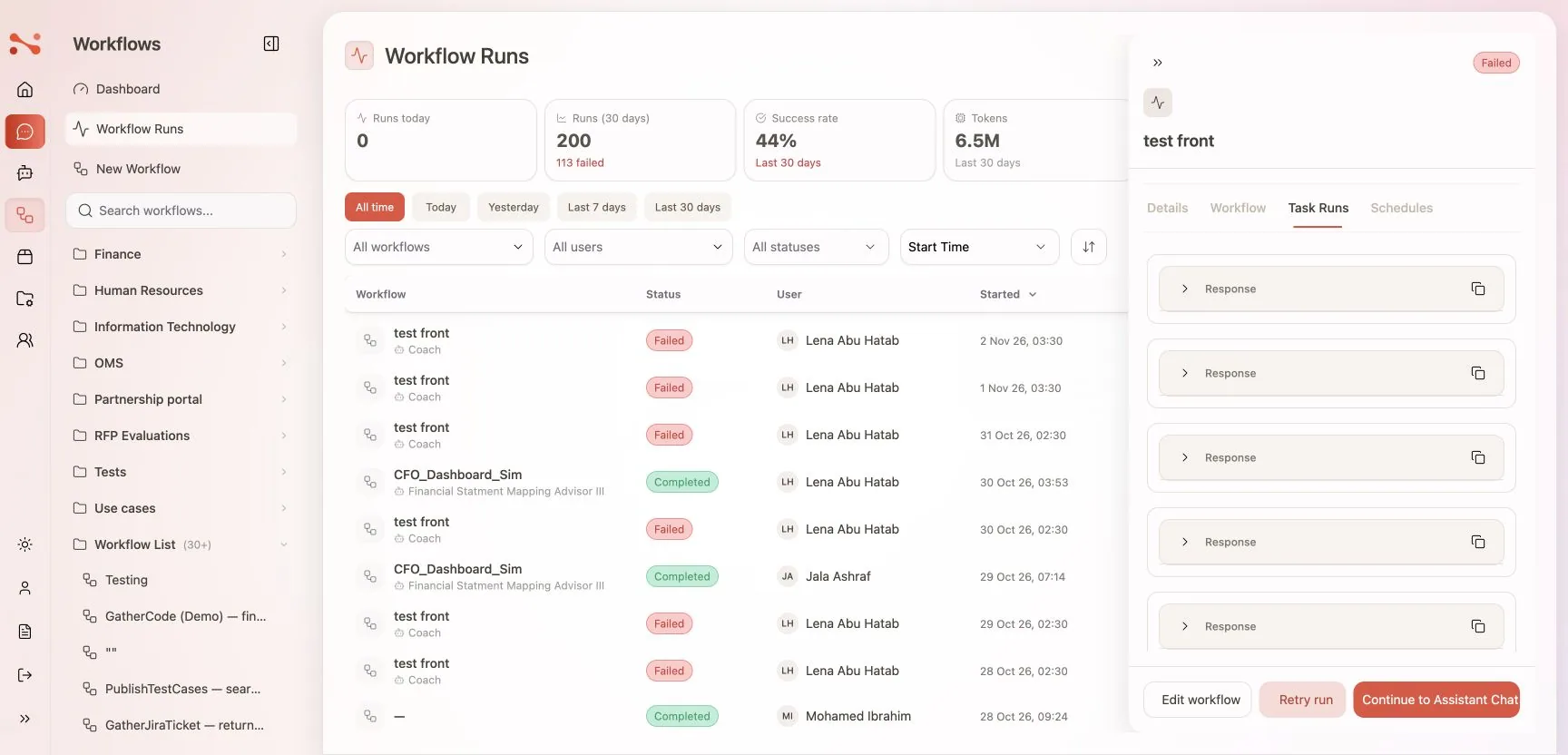
Lists the history of task-level runs for this workflow. If no task runs exist yet, an empty state is shown: "No task runs available".
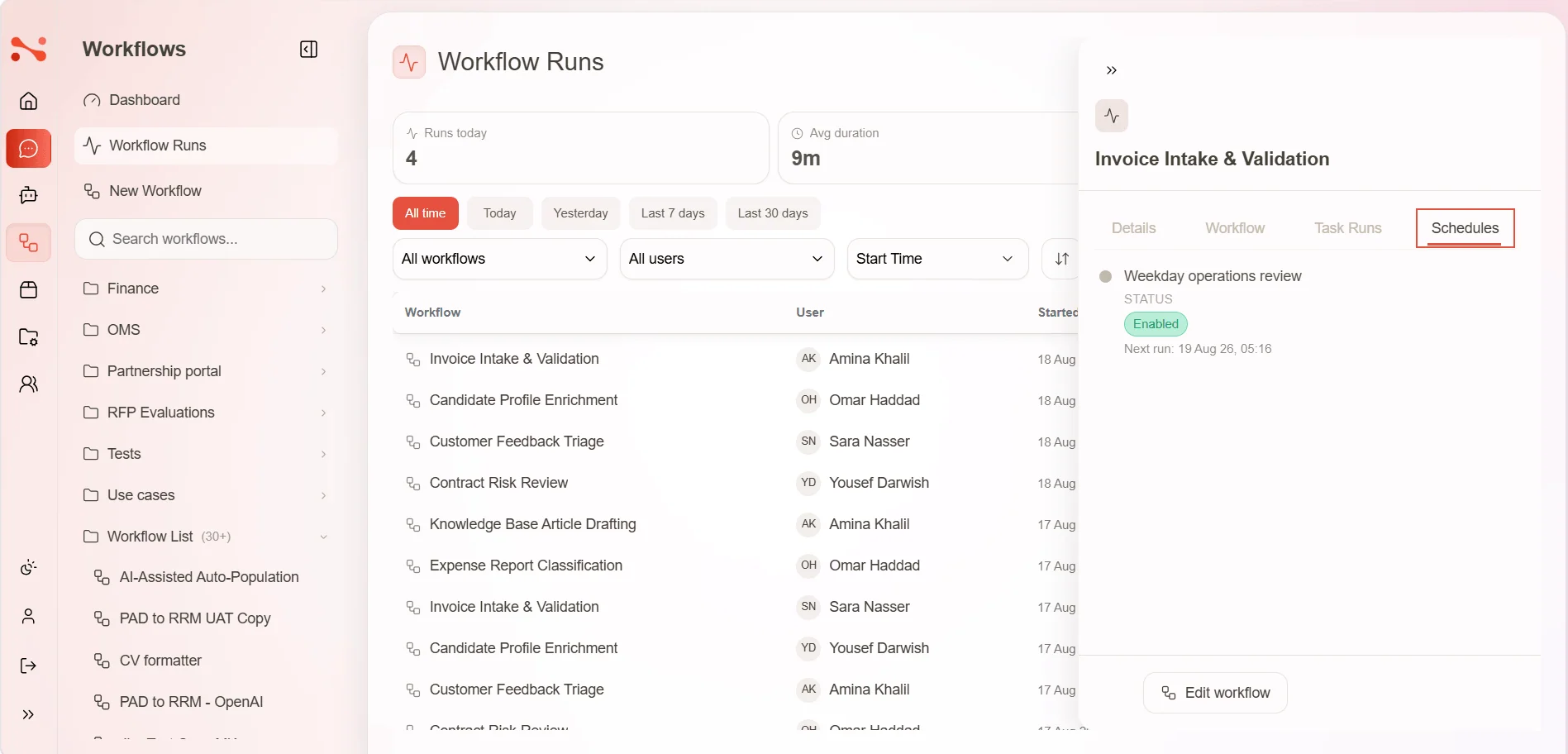
Schedules
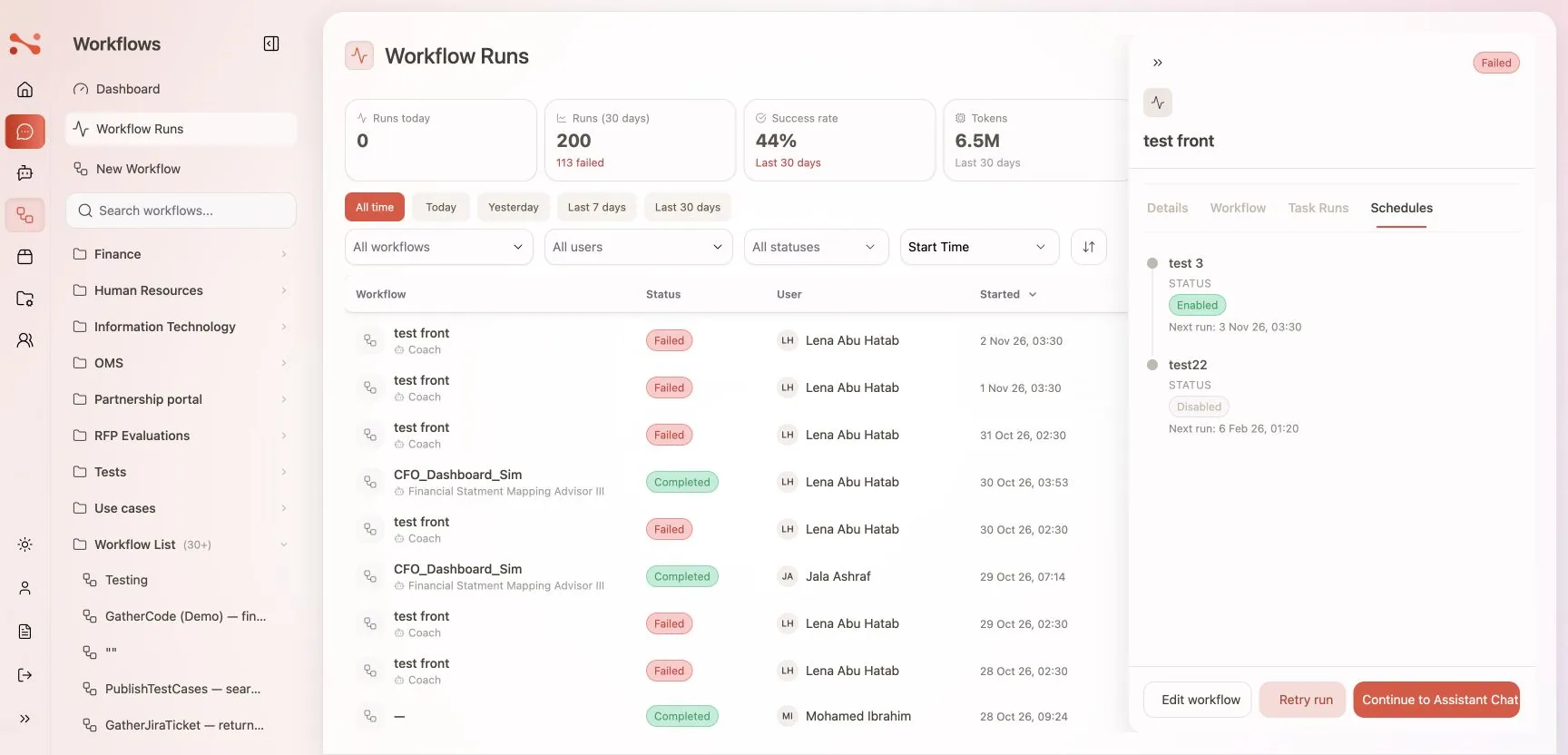
Shows any schedules configured for this workflow, including:
- Status — e.g.
Disabled - Next run — date and time of the next scheduled execution
Editing a workflow
The Edit workflow button appears at the bottom of the details panel and stays visible across all four tabs (Details, Workflow, Task Runs, and Schedules). Click it to navigate directly to that workflow's editor.