Schedule a workflow
Schedules run a saved standalone workflow repeatedly. They are managed from the workflow editor's Schedule action, separately from the manual Run action.
Create a schedule
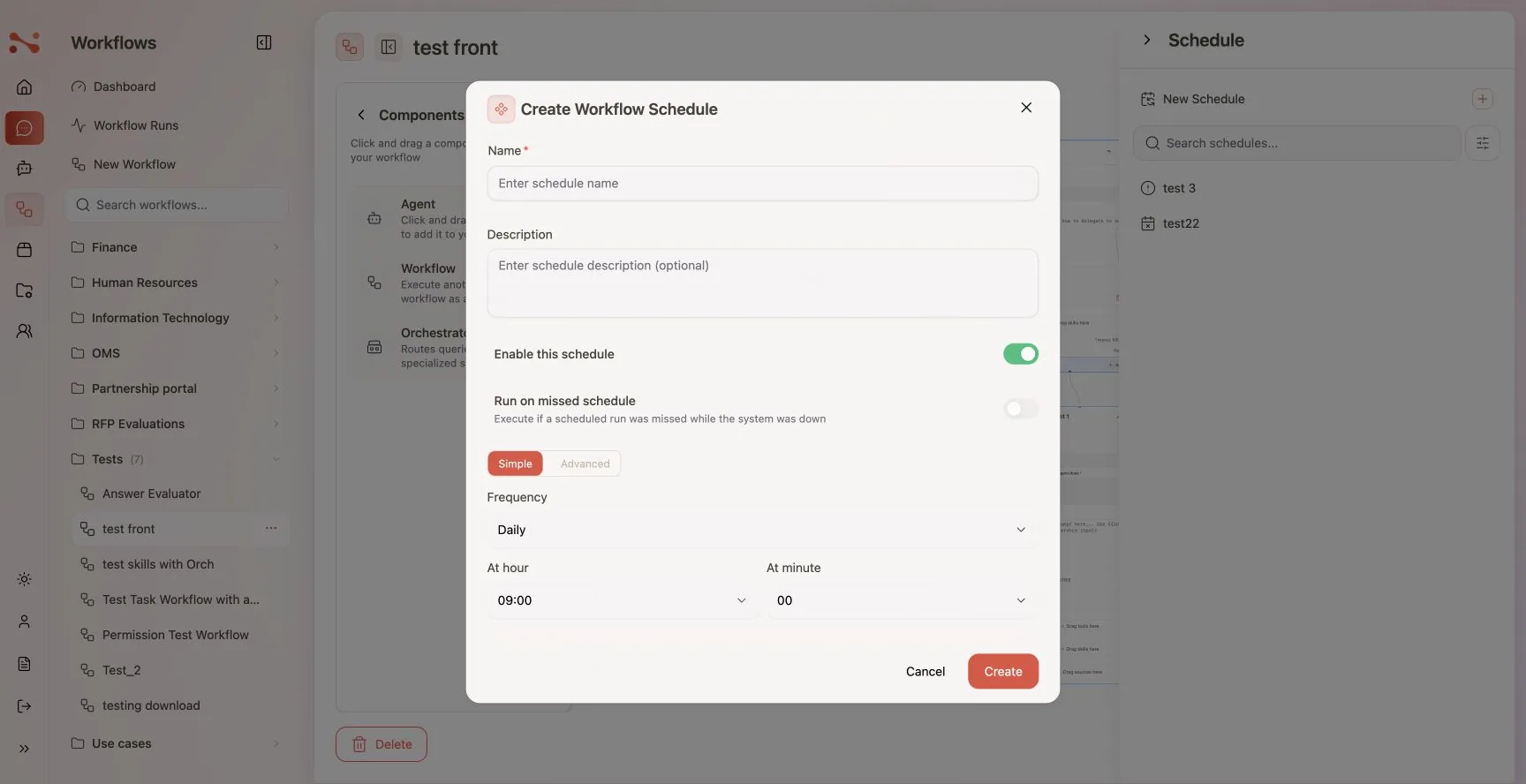
- Open a standalone workflow at
/workflows-task/{id}and save its configuration. - Choose Schedule to open the schedules drawer, then create a new schedule.
- Enter a name and optional description.
- Use the recurrence builder to choose a cron expression and time zone. Review the validation feedback and next-run preview.
- Supply the workflow's input parameters. These saved inputs will be used by scheduled runs.
- Set the enabled state and save.
For example, 0 9 * * * means daily at 09:00 in the selected time zone. Choose the time zone explicitly rather than assuming the browser's local time.
Manage schedules
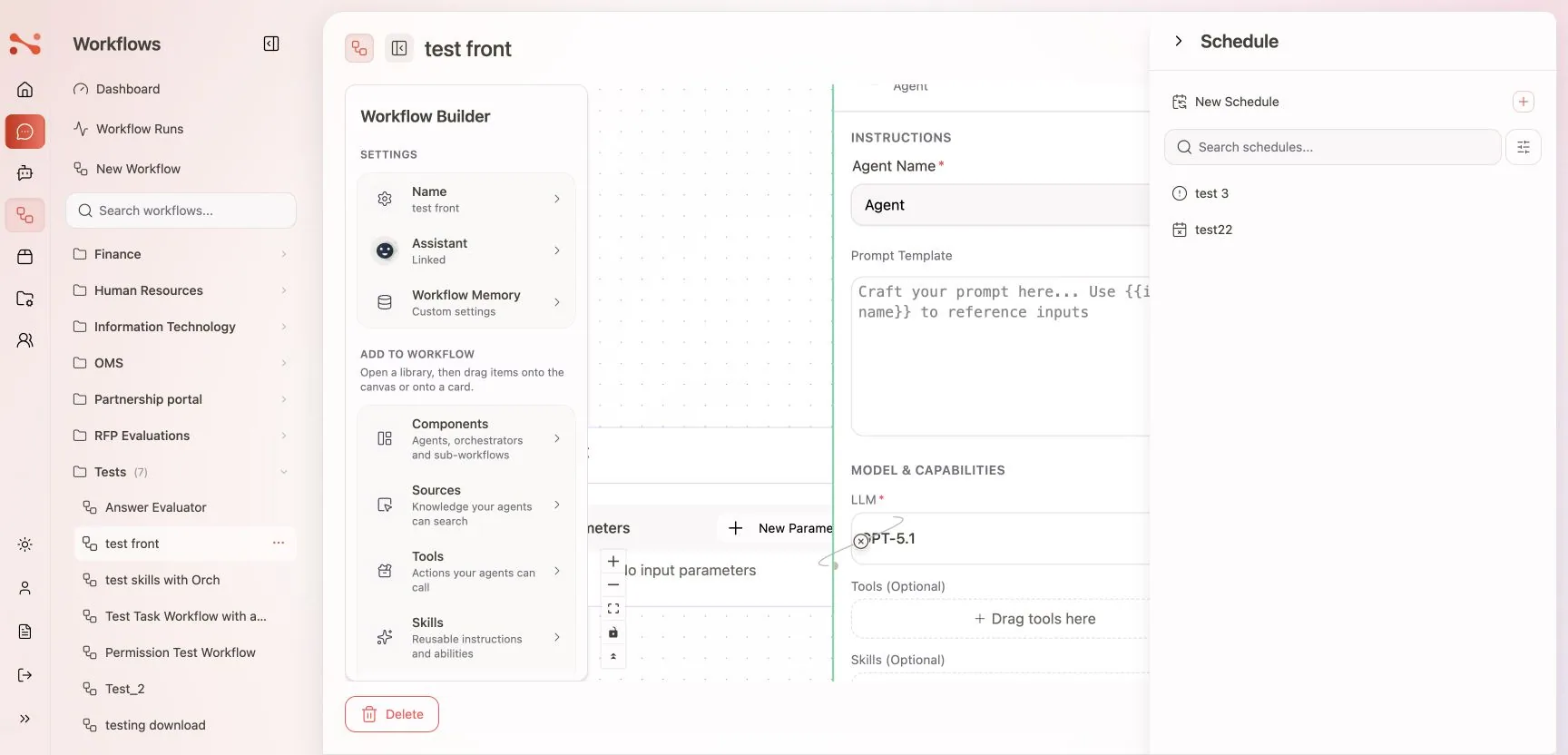
The drawer lists schedules for the current workflow. Use a schedule's actions to edit or delete it, enable or disable it, or inspect its execution history. Disabling a schedule pauses future recurring executions; deleting a schedule removes the recurrence configuration.
Schedule history records run status and trigger type. Follow a run into workflow runs to inspect the workflow's execution details. Use the workflow's Run action for an immediate execution.
Troubleshooting
- No next run: check the enabled state, cron validation, and selected time zone.
- Run failed: inspect history and the run's error, then check required inputs, model settings, and source/tool access.
- Actions missing: schedule and workflow access are permission-controlled. Ask an administrator to check your access.
Assistant-embedded workflows do not expose the standalone Run, History, and Schedule toolbar. See workflow contexts.