Work with artifacts and the canvas
An assistant response can include structured artifacts alongside its text. Depending on the assistant's tools and output, these may be documents, code, dashboards, custom content, or HTML previews. Source citations can also open in the canvas.
Open an artifact
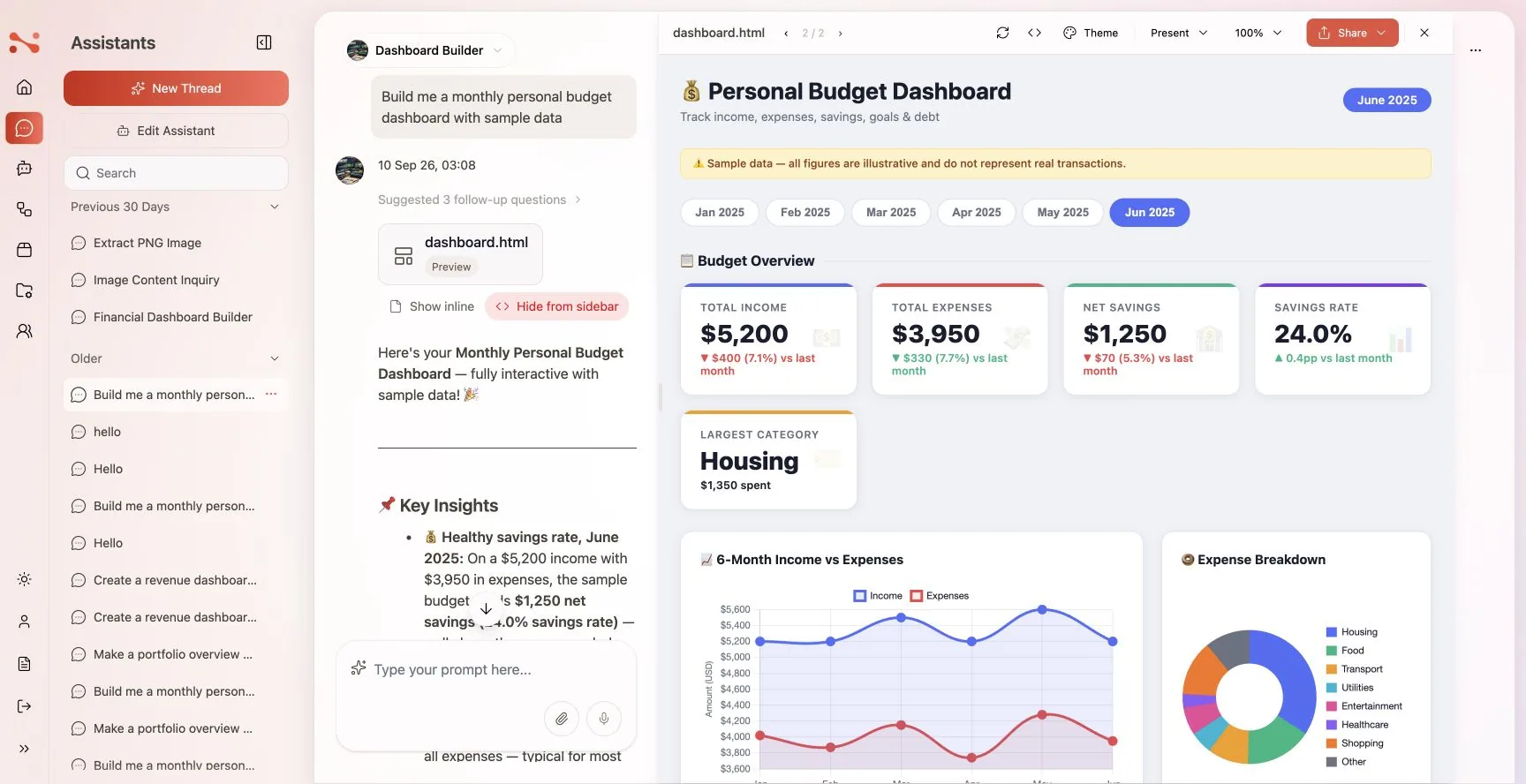
Choose an artifact card in the conversation to open the canvas. On a wide screen it appears beside the chat. On smaller screens the canvas uses an overlay so you can focus on the content and return to the conversation when finished.
The panel's controls depend on the content type. Close it to return to the conversation; this does not delete the response or artifact.
Explore different outputs
| Content | Experience |
|---|---|
| Document | Read the generated document and use the available copy controls. |
| Code | Inspect generated code with syntax highlighting and copy controls. |
| Dashboard | Explore supported visual widgets and charts. |
| HTML preview | Switch between code and preview; use the available reload, zoom, full-screen, open-in-new-tab, and download actions. |
| Sources | Inspect the document excerpts attached to the assistant's response. |
HTML preview theme controls are available for compatible plain-HTML outputs. Other preview formats may expose different actions.
Layout and availability
On desktop, resize the canvas by dragging its boundary when resizing is available. The chat retains space for the conversation. Arabic layouts place the canvas on the opposite side to match the application's RTL direction.
Artifacts are generated by the assistant's configured workflow and tools. A text-only response does not necessarily include an artifact. Ask for the intended output and check the assistant configuration if the required tool is unavailable.